La vista Kanban muestra las tareas de tu proyecto como tarjetas en columnas, una columna por estado. Es la vista ideal para la gestión diaria de tareas y las reuniones rápidas del equipo, mientras que el Gantt te ofrece el panorama completo del cronograma.
Kanban o Gantt: cuándo usar cada uno
Kanban y Gantt responden a preguntas distintas:
| Pregunta | Usa Gantt | Usa Kanban |
|---|---|---|
| ¿Cuál es el cronograma? | ✓ | |
| ¿Cuál es la ruta crítica? | ✓ | |
| ¿En qué estoy trabajando hoy? | ✓ | |
| ¿Qué necesita revisión? | ✓ | |
| ¿El trabajo avanza con fluidez? | ✓ |
Cambia de vista en cualquier momento con el selector de vistas de la barra de herramientas superior. Tus tareas, fechas y dependencias se mantienen sincronizadas: las dos vistas son simplemente lentes distintas sobre los mismos datos.
Cómo funciona el tablero Kanban
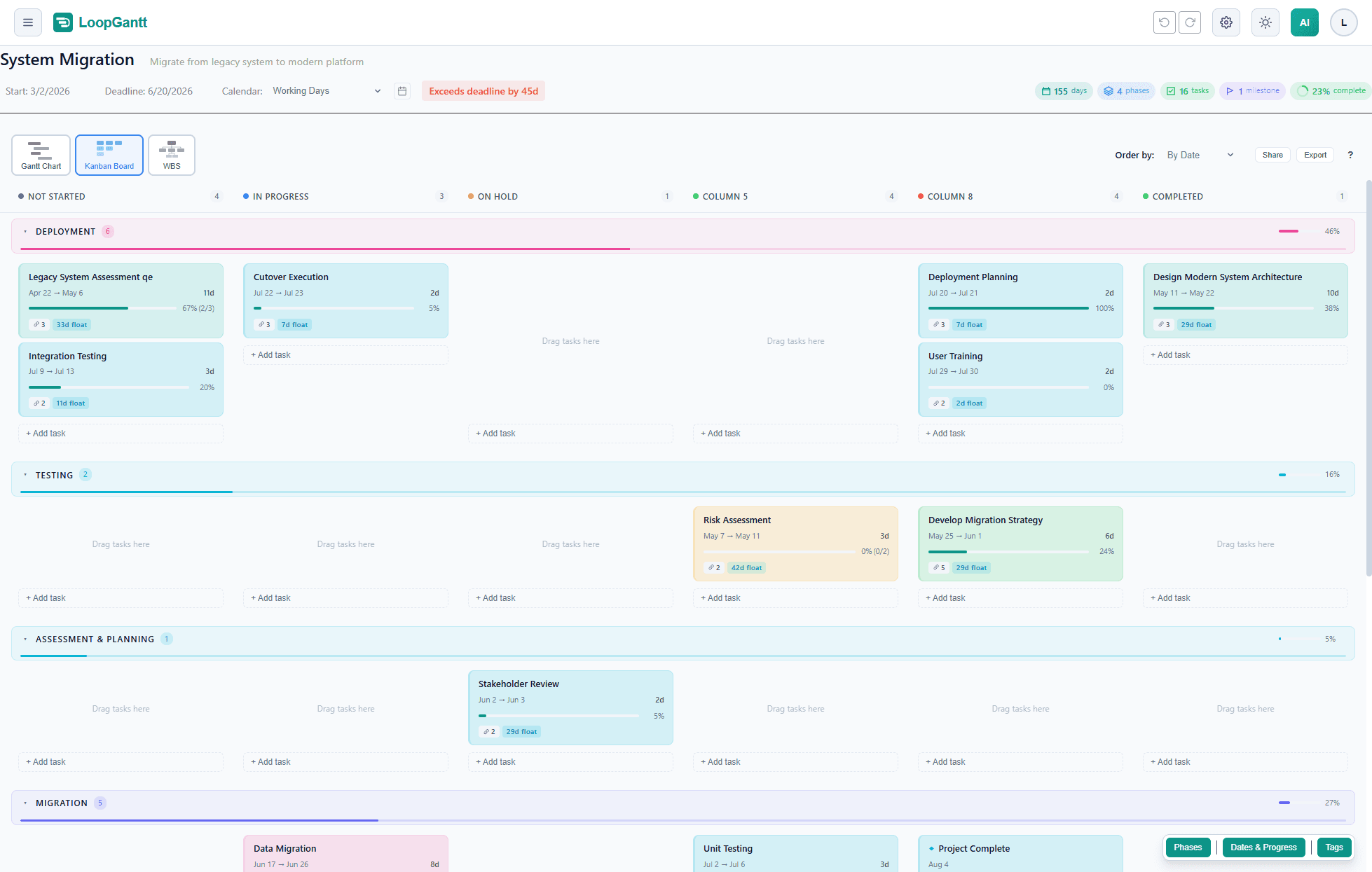
Cada columna representa un estado. Las tareas avanzan por las columnas a medida que progresan. Las columnas predeterminadas son:
- Sin iniciar: trabajo que aún no ha comenzado
- En curso: en lo que se está trabajando activamente
- En pausa: bloqueado o en pausa
- Completada: terminado
Mover una tarjeta de una columna a otra actualiza el estado de la tarea en los datos subyacentes, así que el diagrama de Gantt también refleja el cambio.
Usar el tablero con eficacia
El hábito más poderoso de Kanban es limitar el trabajo en curso (WIP). Si tu columna "En curso" tiene 20 tareas, en realidad nada avanza. Procura mantener el trabajo activo en 3–5 tareas por persona a la vez.
Usa la columna En pausa como señal explícita de bloqueo: si algo bloquea una tarea, muévela ahí y anota el bloqueo en la descripción de la tarea o en el campo de notas. Así los bloqueos quedan a la vista de todo el equipo sin necesidad de una reunión.
Filtros
Usa la barra de filtros para mostrar solo las tareas que coincidan con una prioridad, una fase o un responsable. Los filtros funcionan tanto en la vista Gantt como en la vista Kanban.