Te damos la bienvenida a LoopGantt. Esta guía te acompaña paso a paso para crear tu primer proyecto, añadir tareas y ver tu diagrama de Gantt, todo en unos 5 minutos.
Paso 1 — Crea un proyecto
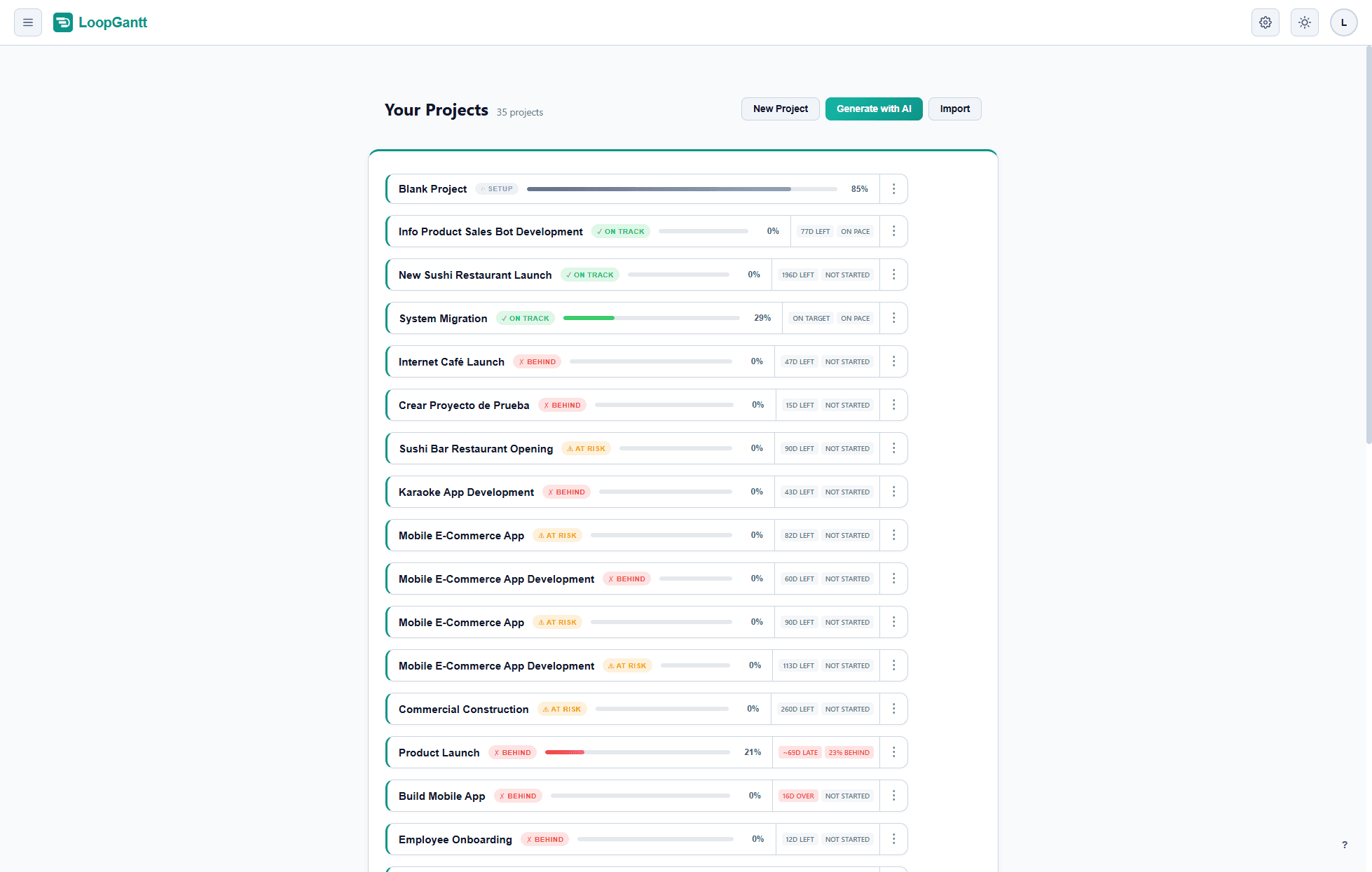
Desde el panel, haz clic en Nuevo proyecto. Si quieres, elige una Fecha de inicio (si la dejas vacía, será hoy) y luego elige Proyecto en blanco o una plantilla. Siempre podrás cambiar estos datos más adelante.
Paso 2 — Añade tareas
Tu proyecto se abre en la vista Gantt, con una lista de tareas vacía a la izquierda. Para añadir tareas:
- Haz clic en el botón + en la parte superior de la lista de tareas, o pulsa Tab con una fila seleccionada.
- Escribe un nombre y pulsa Enter para guardarla.
- Define una duración (en días laborables) haciendo clic en la celda de duración.
Las barras del Gantt aparecen automáticamente a la derecha a medida que introduces las duraciones.
Paso 3 — Organiza con fases
Las fases agrupan tareas relacionadas y dan a tu plan una estructura clara. Para crear una fase, haz clic derecho en cualquier tarea y elige Convertir en fase, o haz clic en la flecha junto al botón + en la parte superior de la lista de tareas y elige Nueva fase.
Arrastra tareas debajo de una fase para anidarlas. Las fases abarcan automáticamente todas sus tareas hijas: no puedes fijar la duración de una fase manualmente.
Paso 4 — Añade una dependencia
Para vincular la tarea B de modo que empiece cuando termine la tarea A (una dependencia Fin a inicio):
- Haz clic en la tarea B para abrir el editor de tareas.
- En Dependencias, abre Selecciona una predecesora….
- Selecciona la tarea A como predecesora y elige el tipo FS.
- Cierra el editor. Los cambios se guardan a medida que los haces.
El diagrama de Gantt se reprograma automáticamente: la tarea B ahora empieza el día después de que termina la tarea A.
Paso 5 — Comparte o exporta
Haz clic en el botón Exportar de la barra de herramientas para descargar tu plan como archivo PNG, CSV o JSON. Las exportaciones a PDF, Word y Excel están disponibles en el plan Pro.
¿Qué sigue?
- Conoce los cuatro tipos de dependencia (FS, SS, FF, SF).
- Prueba el Generador de proyectos con IA para crear un plan completo a partir de una sola frase.
- Importa un plan existente desde CSV o JSON.