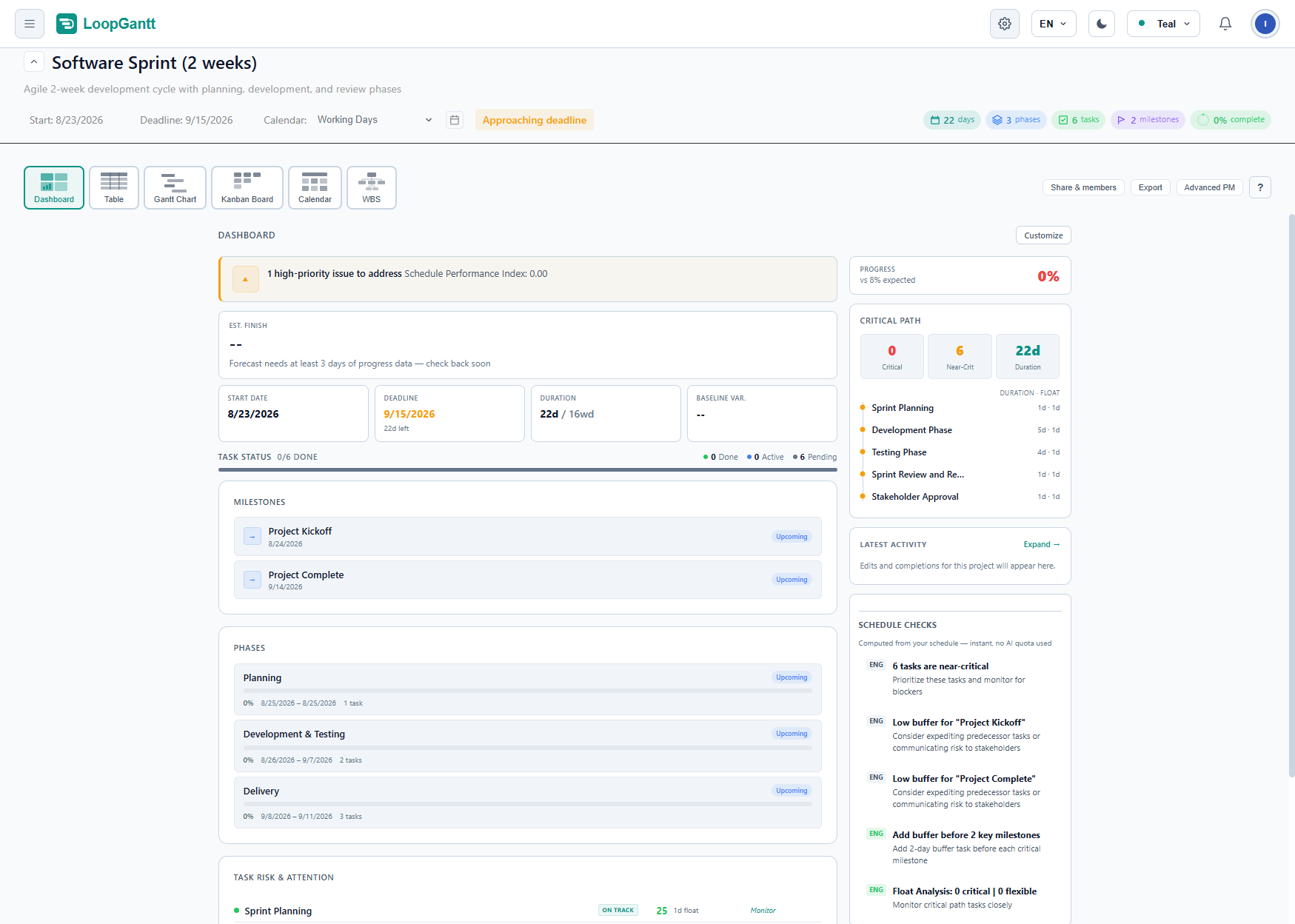
지난 2주는 LoopGantt 역사상 가장 바쁜 시기였어요. 일부는 프로젝트를 여는 순간 바로 눈에 띌 거예요. 새 보기, 새 대시보드, 작업 모달 속 시계 같은 것들이죠. 일부는 더 조용한 변화예요. 정직한 일정 계산, 마침내 제대로 작동하는 역할, Microsoft Project 파일을 더는 망가뜨리지 않는 가져오기 기능 같은 것들이요.
출시된 모든 것을, 체감하기 쉬운 순서대로 소개할게요.
스스로 기록되는 시간 추적
수동 시간 기록에는 치명적인 결함이 하나 있어요. 사람들이 기록하는 걸 잊는다는 거죠. 그래서 저희는 타이머 자체가 데이터 입력이 되도록 만들었어요.
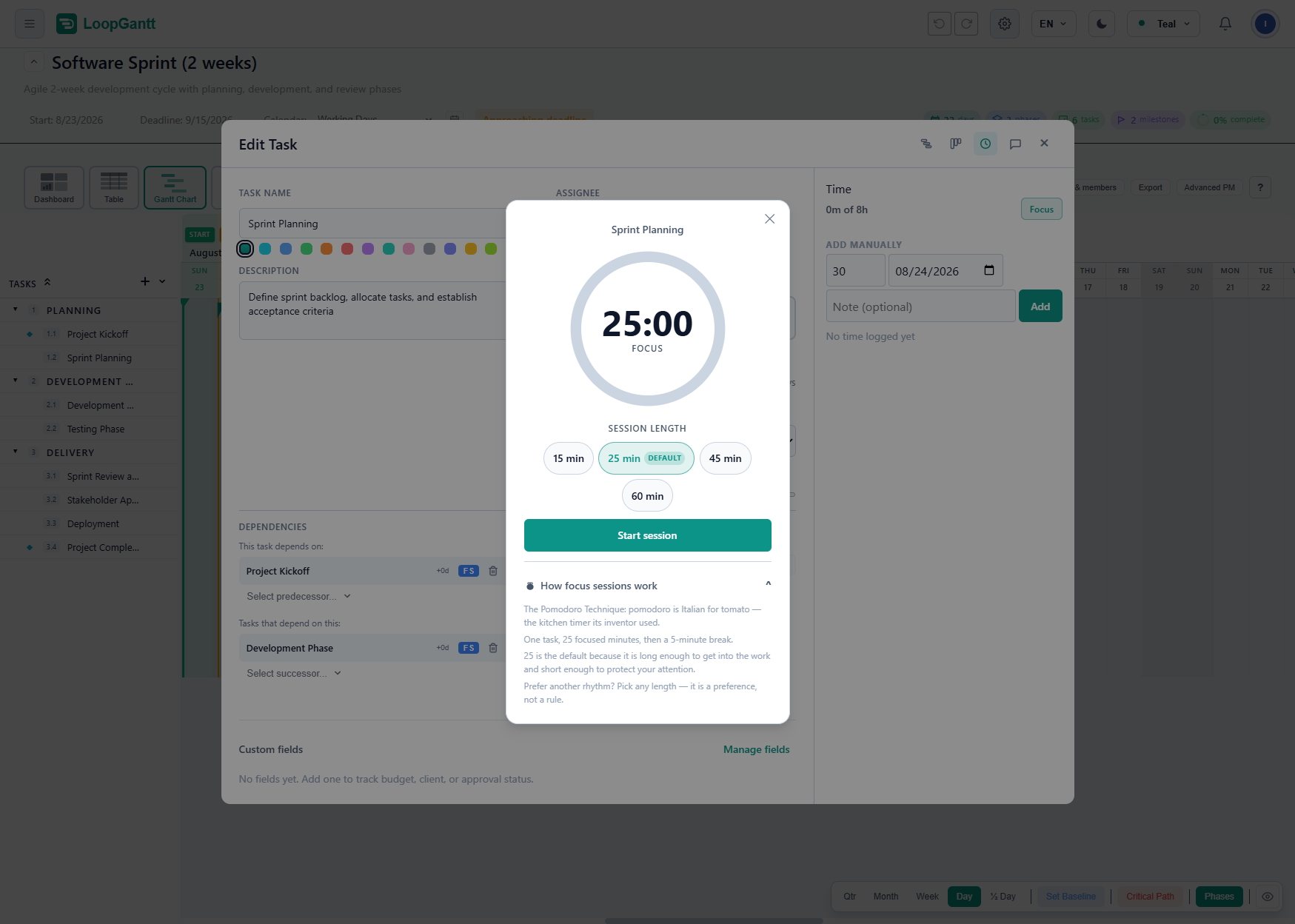
아무 작업이나 열고 집중 세션을 시작하세요. 25분 카운트다운으로, 헤더에 계속 떠 있는 칩에 표시되기 때문에 앱의 어디로 이동해도 작업 이름과 남은 시간을 볼 수 있어요. 세션은 새로고침해도 유지돼요. 카운트다운이 끝나면 LoopGantt가 해당 작업에 25분 기록을 자동으로 남기고, 알림음을 울리고, 허용했다면 브라우저 알림을 보내고, 5분 휴식으로 넘어가요. 숫자를 하나도 입력하지 않았는데 말이죠.
손으로 기록하는 게 좋으세요? 작업 시간 기록은 이제 작업 모달의 사이드 패널, 댓글과 체크리스트 바로 옆에 있고, 수동 입력은 예전과 똑같이 작동해요. 그리고 대시보드에 기록된 시간 위젯이 추가됐어요. 사람별 총 분과 최근 7일 누적치를 비례 막대로 보여 줘요. “이번 주는 다 어디로 갔지?”라는 질문에 한눈에 답해 주는 무료 기능이에요.
월간 캘린더 보기
일정을 보는 여섯 번째 방법이자, Microsoft Project에서 넘어온 분들이 가장 먼저 찾는 보기예요. 작업은 예정된 기간에 걸친 막대로 표시되고, 주 단위로 잘리며 이어짐 표시가 붙어요. 마일스톤은 해당 날짜에 다이아몬드로 표시되고, 기한이 지난 작업과 크리티컬 작업에는 색이 입혀져요. 아무 날짜나 클릭하면 그날에 걸친 모든 항목이 할 일 목록에 나와요. 휴대폰에서도 캘린더는 이렇게 작동하는데, 막대는 밀도 점으로 바뀌고 탭하면 그날의 내용을 볼 수 있어요. 막대, 다이아몬드, 할 일 목록의 줄을 클릭하면 해당 작업이 열려요.
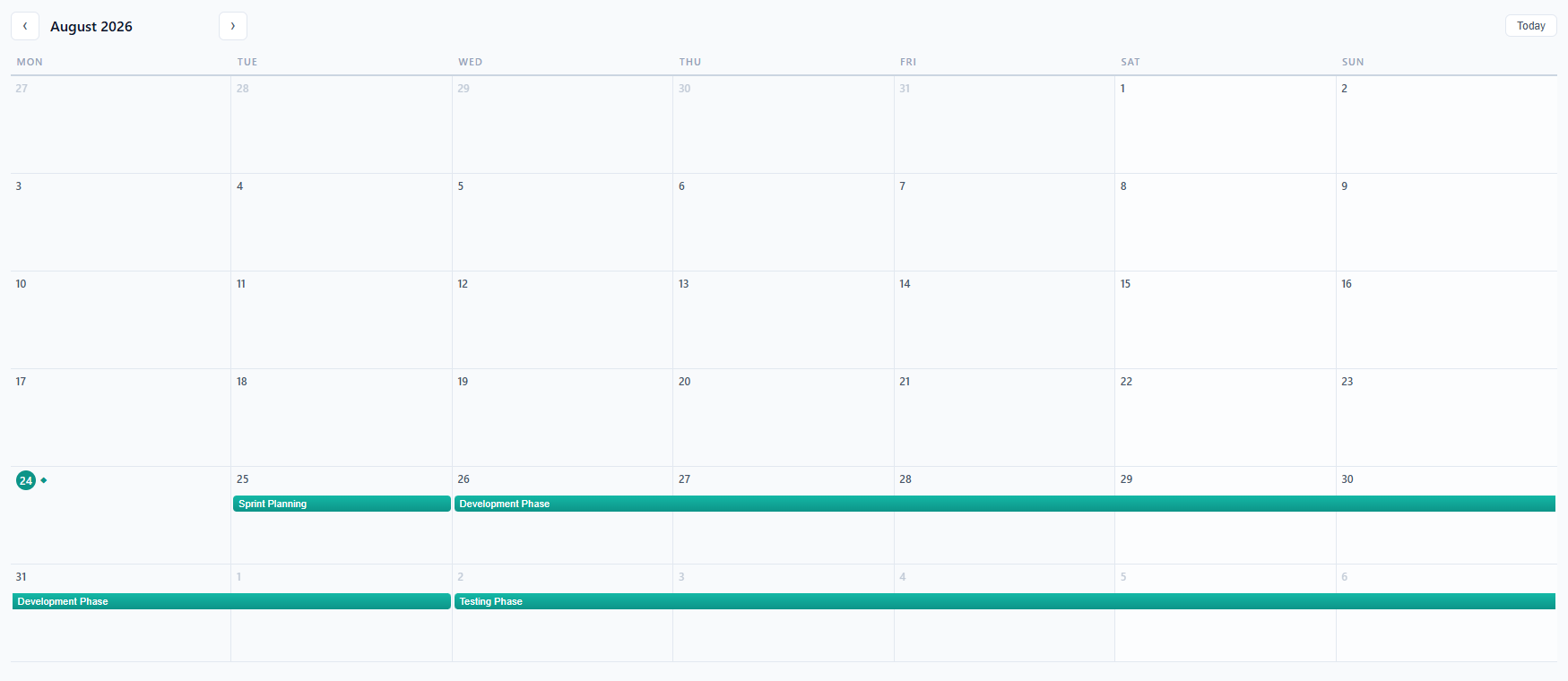
데스크톱에서도, 모바일 탭 바에서도 쓸 수 있고, 무료예요.
질문에 답하는 대시보드
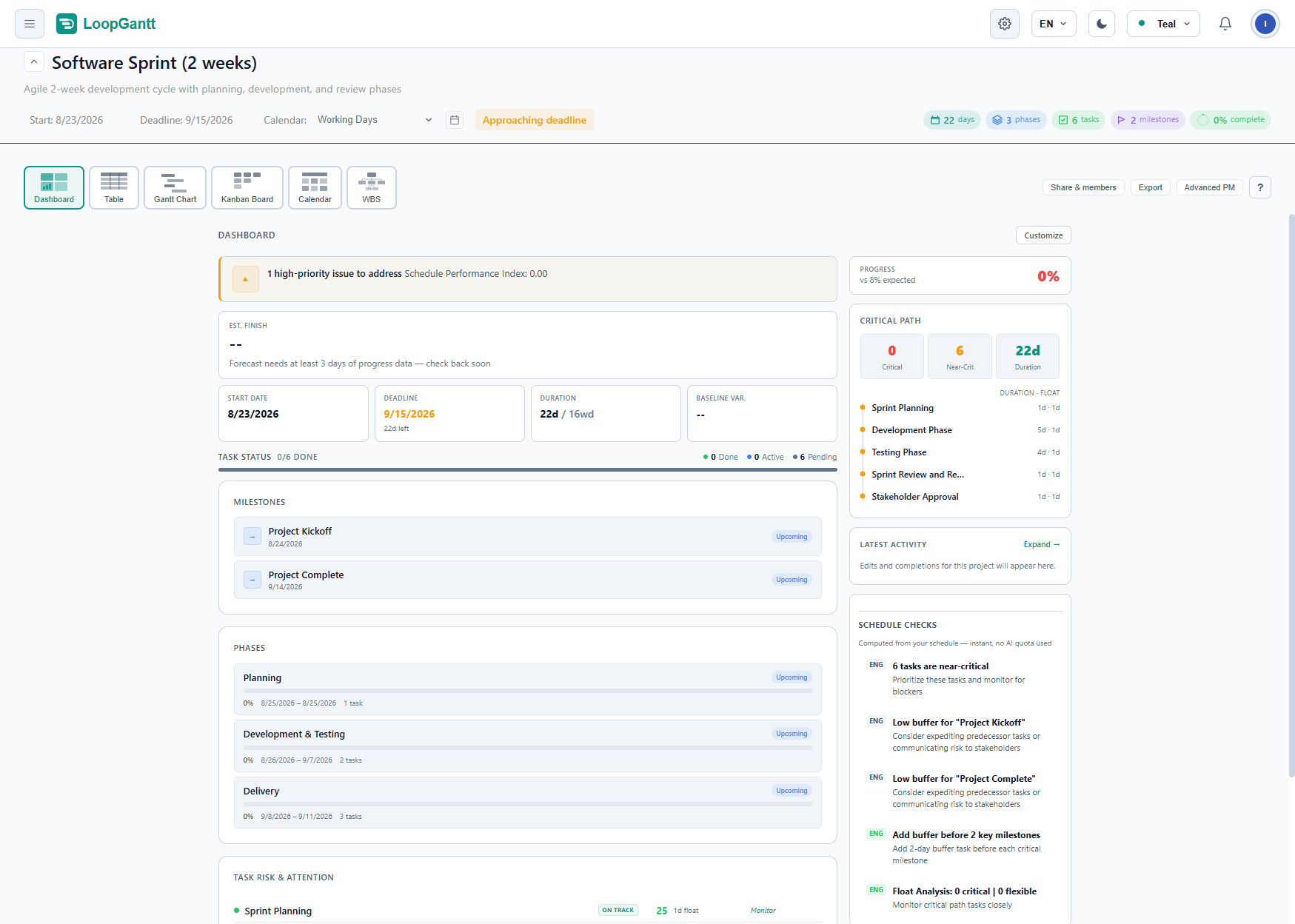
프로젝트 대시보드는 이해관계자가 정말로 알고 싶어 하는 한 가지를 중심으로 다시 설계됐어요. 새 히어로 타일은 그걸 한 문장으로 보여 줘요. 바로 마감일 대비 예상 완료예요. 예를 들어 “11월 9일 — 마감일(7월 31일)로부터 102일 초과”처럼요. 부호 규칙은 하나뿐이고, 늦으면 빨간색이에요. 시작일과 마감일은 계속 편집할 수 있는 타일이에요. 진행률에는 이제 툴팁 안이 아니라 눈에 보이는 곳에 “예상 N% 대비”가 표시돼요.
내부적으로는 이제 모든 것이 하나의 분모를 공유해요. 작업 상태는 실제 작업만 세고, 단계와 마일스톤은 각자의 위젯에서 따로 세요. 덕분에 진행률에서 단계가 하위 작업을 이중으로 반영하던 문제도 고쳐졌어요. 더 많은 정보를 원하는 PM을 위해, 선택해서 켜는 PM 지표 위젯에는 일정성과지수, 주도 경로, 준임계 개수가 담겨 있어요.
세 가지 새 위젯도 합류했어요. 사용자 지정 필드 요약, 담당자별 업무량, 그리고 위에서 소개한 기록된 시간이에요. 위젯은 원하는 대로 구성할 수 있어요. 대시보드에 무엇을 둘지, 무엇을 트레이에 넣어 둘지 고르세요.
팀 워크스페이스: 역할, 초대, 깔끔한 나가기
Teams 현장 검토에서 드러난 가장 큰 공백들을 메웠어요. 이제 소유자와 관리자는 멤버의 역할을 변경(관리자, 멤버, 뷰어)하고 멤버를 제거할 수 있어요. 소유자를 제외한 누구나 나가기를 할 수 있어요. 누군가 나가거나 제거되면 그 사람이 소유한 프로젝트는 자동으로 이전돼요. 주인 잃은 프로젝트는 생기지 않아요.
초대도 이제 보내고 끝이 아니에요. 대기 중인 초대 목록에서 누가 초대됐고 언제 만료되는지 볼 수 있고, 각 행에서 다시 보내기와 취소를 할 수 있어요. 초대받은 사람은 초대가 도착하는 순간 앱 내 알림을 받아요. 이제 초대를 수락하면 바로 그 워크스페이스로 전환돼요. 프로젝트 목록은 지금 있는 워크스페이스로 범위가 한정되고, 대시보드는 여러분의 역할을 정확히 반영해요. 허용되지 않은 편집은 조용히 실패하는 대신 명확한 메시지와 함께 거부돼요.
무엇이든 @멘션
채팅에도 댓글과 같은 @멘션 기능이 생겼어요. @를 입력해 팀원을 멘션하면, 그 사람은 메시지로 바로 이동하는 딥 링크가 담긴 알림을 받아요. 여러 사람이 참여하는 그룹 스레드도 지원해요.
게다가 이제 @ 팝업에는 사람 아래에 작업과 프로젝트도 나와요. 하나를 고르면 링크가 되고, 채팅에서든 댓글에서든 클릭 한 번으로 올바른 프로젝트의 정확한 작업이 열려요.
한층 성장한 사용자 지정 필드
사용자 지정 필드가 매일 쓰는 동작들을 익혔어요. 선택 필드뿐 아니라 모든 필드 유형으로 필터할 수 있어요. 옵션, 체크박스, 숫자 범위, 특정 날짜 이전 또는 이후의 날짜까지요. 표를 필드 기준으로 정렬할 수 있어요. 선택한 여러 작업에 걸쳐 필드 값을 일괄 편집할 수 있어요.
이제 보고서에도 반영돼요. PDF와 Word 내보내기에는 프로젝트 수준의 사용자 지정 필드 요약이 담겨요. Backlog: 2 · Review: 1, 3/4 checked, Sum 15 · Avg 7.5, 다음 날짜, 기한 초과 개수 같은 것들이죠. Excel에는 요약 워크시트가 추가돼요. 프로젝트를 복제하거나, 템플릿으로 저장하거나, 템플릿으로 프로젝트를 만들어도 모든 필드가 그대로 유지돼요.
작업하는 곳에서 바로 보는 WBS 코드
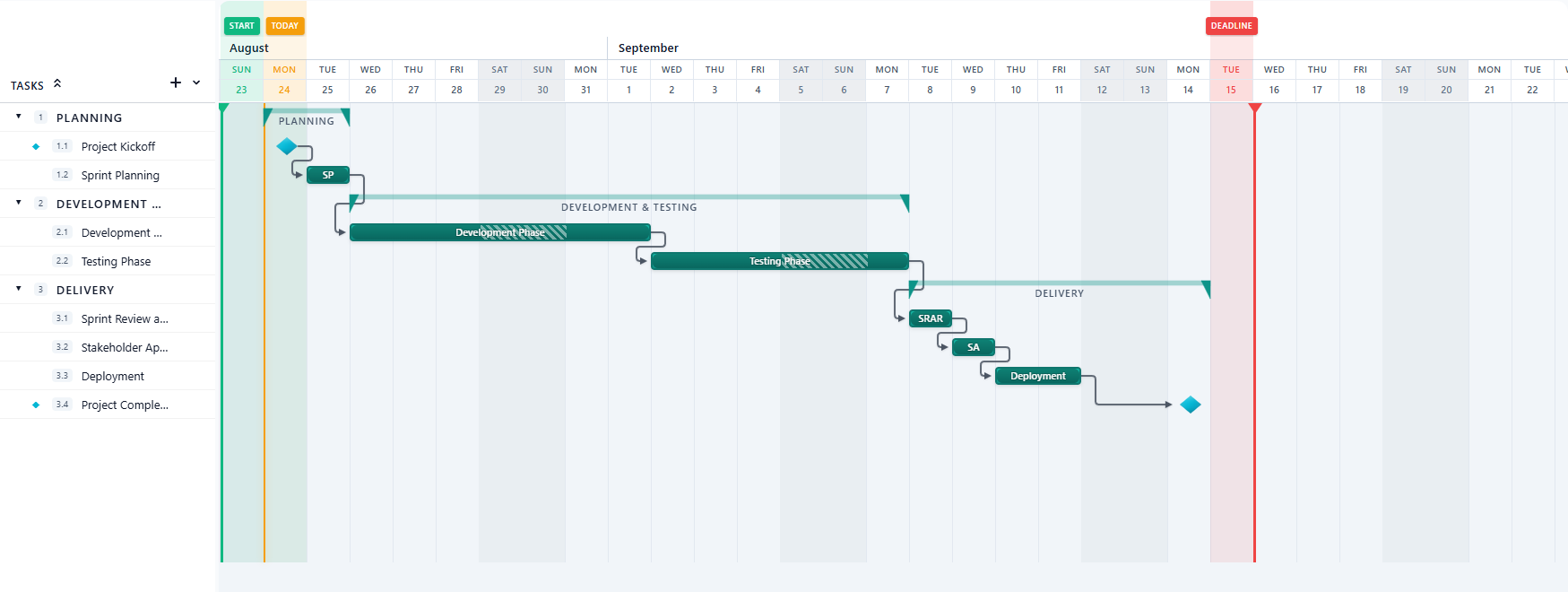
개요 번호(1, 1.1, 1.2.3)를 이제 켜고 끌 수 있는 표 열로, 그리고 간트 작업 열의 칩으로 쓸 수 있어요(눈 메뉴에서 찾아보세요). 번호는 프로젝트 구조에서 한 번만 계산되기 때문에 표, 간트, WBS 다이어그램, 그리고 PDF, Word, Excel 내보내기 모두에 똑같은 코드가 찍히고, 필터나 재정렬로 번호가 다시 매겨지는 일도 없어요. 기본값은 꺼짐이에요. 프로젝트를 진지하게 관리하고 있다는 신호를 주고 싶을 때 켜세요.
눈에 띌 만한 작은 변화들
- 이제 설정은 페이지예요. 예전 설정 대화 상자는 사라지고, 계정, 환경설정, 워크스페이스, 결제로 묶인 사이드바가 그 자리를 대신해요. 프로필, 내보내기 기본값, 캘린더, 결제를 위한 새 페이지도 생겼어요.
- 표의 행을 더블클릭하면 작업 편집기가 열려요. 한 번 클릭해 이름을 바꾸는 동작은 그대로예요.
- 정직한 일정. 작업은 예정된 시작일이 되었고 끝나지 않은 선행 작업이 그 작업을 붙잡고 있을 때에만 차단됨으로 표시돼요. 진행률을 100%로 하면 작업이 완료로 표시되고, 그 반대도 마찬가지예요. 어디서든요. 진행률 스크러버는 누를 수 있는 영역이 넓어졌고, 빠르게 드래그해도 손잡이를 놓치지 않아요.
- Microsoft Project 가져오기 정확도. 실제 내보내기 파일은
<IsSummary>가 아니라<Summary>를 써요. 이제 단계가 평평하게 풀리면서 가짜 일수가 더해지는 일 없이 단계로 가져와져요. 지연 단위도 올바르게 변환되고, UTC보다 서쪽 시간대에서 날짜가 하루씩 밀리는 일도 없어졌어요. - 무료 한도에서 프로젝트를 삭제했나요? 자리가 즉시 비워져요. “업그레이드” 안내를 없애려고 새로고침할 필요가 더는 없어요.
- 브랜드가 적용된 확인 및 비밀번호 복구 이메일, 프로젝트 카드의 마우스 오른쪽 버튼 메뉴, 사이드바 프로젝트 고정 해제 전 확인, 모든 색상 테마에 걸친 중립적인 표면, 그리고 내보낸 일정 표에 표시되는 단계 기간.
직접 써 보세요
작업을 열고 집중 세션을 시작해서 기록은 타이머에 맡기세요. 그런 다음 캘린더 보기로 전환해 같은 일정이 월 단위로 펼쳐진 모습을 보세요. 팀으로 쓰고 있다면 워크스페이스의 멤버 페이지로 가 보세요. 역할과 초대가 기다리고 있어요.